Vero Door Vero Door

Why Does My Smart Lock Keep Losing WiFi Connection?

Time:2026-09-27 Author:Charlotte
0%

A smart lock can show “offline” even when the rest of your home seems connected. The cause may be a weak signal near the door, a crowded router, low batteries, or a router setting the lock cannot use. Why does my smart lock keep losing Wi-Fi connection? The answer often lies in the small gap between a router’s signal and the lock’s location.

The FCC’s Measuring Broadband America report assesses broadband performance, but a strong internet speed result does not guarantee reliable Wi-Fi at every point inside a home. Walls, metal doors, and distance can weaken the signal where a lock is installed. Parks Associates’ smart-home research tracks connected-device adoption and consumer experiences, highlighting a practical issue: more connected devices mean more potential pressure on a home network. Neither kind of report provides a universal failure rate for smart locks, so a single percentage would be misleading.

Look for patterns before changing settings. Does the lock disconnect when the door closes? Does it happen after a router restart, or when the batteries are low? Small clues matter. I’ve seen troubleshooting advice blame the router too quickly; sometimes the lock’s placement or power supply deserves attention first. This guide explains how to check signal strength, router compatibility, firmware, and battery condition, then choose a safe fix without guessing.
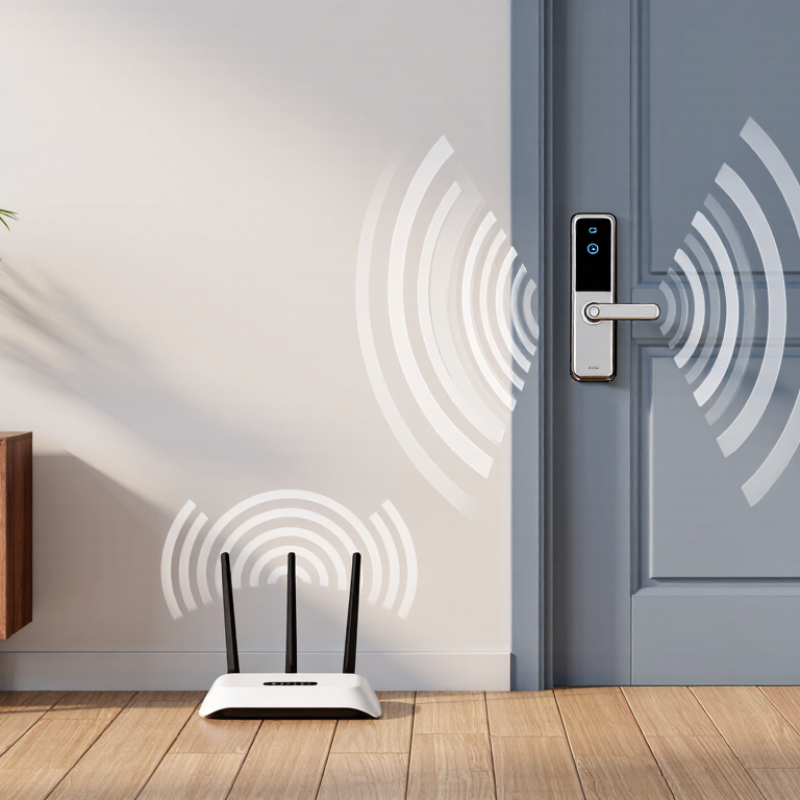
Why Does My Smart Lock Keep Losing WiFi Connection?

How a Smart Lock Maintains Its Wi-Fi Connection

A smart lock maintains Wi-Fi through a careful balance between security, battery life, and signal stability. Most models use a low-power radio, then wake briefly to send status updates or receive commands. Some locks connect directly to a 2.4 GHz network, while others rely on a nearby bridge. The bridge usually stays online and carries heavier network traffic.

Signal strength matters more than internet speed. A lock beside a metal door, concrete wall, or large appliance may show weak RSSI, even when phones work normally. I once blamed the lock, but the real problem was a router hidden inside a cabinet. Moving it only two meters improved the connection. Small changes can matter.

The connection also depends on DHCP leases, WPA authentication, DNS access, and router band steering. Aggressive sleep settings may delay reconnection after the lock wakes. Research firm IoT Analytics reported 16.6 billion connected IoT devices worldwide in 2023, showing how crowded home networks have become. More devices mean more interference and router workload. The Wi-Fi Alliance explains that modern Wi-Fi power-saving features reduce consumption, but devices must periodically wake for synchronization. That trade-off is easy to overlook.

Check the lock’s signal near the door, not beside the router. Reserve a stable network address when supported. Keep firmware current. A dedicated 2.4 GHz network can help, though it is not always necessary. I would not call every dropout a hardware failure. Battery voltage, metal framing, and an overloaded access point deserve inspection first.

Common Causes of Repeated Wi-Fi Disconnections

A smart lock usually drops Wi-Fi for ordinary network reasons, not because its radio has failed. Distance is a common culprit: a lock mounted on a metal door, behind masonry, or near a refrigerator may receive a weak, fluctuating signal. Try checking the signal at the door, not beside the router. Small difference, big clue. Cisco’s Annual Internet Report forecast 29.3 billion networked devices by 2023, with machine-to-machine connections making up about half. That forecast highlights how crowded home networks can become; streaming, cameras, and appliances may compete for airtime.

Router placement and settings matter, too. A router tucked in a cabinet or placed low behind furniture has a harder path through walls. Some locks support only 2.4 GHz Wi-Fi, while a router may steer devices between bands or combine both under one network name. Check the lock’s instructions and router settings before changing anything. NIST’s IoT device cybersecurity guidance emphasizes clear, secure configuration and reliable device interfaces; a saved network password or security setting mismatch can interrupt reconnection. Even a recent password change can leave the lock trying old credentials.

Power can be overlooked. A weakening battery may cause unstable operation, especially during repeated connection attempts. Check the battery level and inspect the lock’s connection history, if available. Then test one change at a time: move the router, reconnect the lock, and watch it for a day. I’d avoid resetting everything at once; it can erase useful clues. A brief outage may also come from router updates or local interference, so note when drops occur before assuming the lock is defective.

Why Does My Smart Lock Keep Losing WiFi Connection? - Common Causes of Repeated Wi-Fi Disconnections

Common cause Typical signs How to check Practical steps
Weak signal at the door The lock disconnects more often when the door is closed, or reconnects when you move closer to the router. Check Wi-Fi signal strength near the installed lock with a phone. Metal doors, masonry, and distance can weaken signals. Move the router or access point closer, reduce obstructions, or use a compatible mesh node or extender.
2.4 GHz / 5 GHz compatibility or band steering The lock fails during setup or drops after router settings change; other devices may remain connected. Check the lock’s specifications and router settings. Many smart-home devices support 2.4 GHz Wi-Fi but not 5 GHz. Enable a compatible 2.4 GHz network and follow the lock’s setup instructions. If needed, temporarily separate network names during setup.
Router congestion or interference Disconnections occur at busy times or alongside slow Wi-Fi, especially in areas with many nearby networks. Check whether other devices also experience interruptions and review the router’s channel or network diagnostics. Place the router in an open location, reduce unnecessary network traffic, and use the router’s automatic channel selection or a less congested channel.
Router security or network settings The lock disconnects after a password, encryption, firewall, or router configuration change. Compare the current network settings with the lock’s documented requirements, including supported security modes. Reconnect the lock using the current Wi-Fi credentials. Avoid weakening network security; use a supported configuration recommended by the device maker.
Low batteries or unstable power Wi-Fi loss occurs with low-battery alerts, sluggish operation, or unexpected lock restarts. Check the lock’s battery indicator and inspect the batteries for age, poor contact, or incorrect installation. Install fresh batteries of the specified type, confirm correct polarity, and clean accessible contacts as directed in the product instructions.
Router DHCP or IP address issues The lock appears offline intermittently, especially after router reboots or network changes. Review the router’s connected-device list and logs to see whether the lock receives an IP address consistently. Restart the router and lock. If the issue continues, consult the router documentation about DHCP reservations or address conflicts.
Firmware or app issues The problem begins after an update, or the app reports the lock offline while local operation still works. Check for available lock, app, and router updates, and look for service notices in the official support channels. Update software when available, then restart the device and app. Follow the manufacturer’s instructions before resetting or removing the lock.
Temporary internet or router outage The lock goes offline at the same time as other connected devices, then returns without changes to the lock. Check whether other devices can reach the internet and review the router or internet provider’s outage information. Restore the router’s internet connection and allow the lock time to reconnect. Confirm whether the lock supports local control while Wi-Fi is unavailable.

Note: Wi-Fi availability and remote features vary by lock model and network configuration. Check the device documentation before changing router settings or performing a factory reset.

How to Diagnose Your Smart Lock’s Connection Problem

Why Does My Smart Lock Keep Losing WiFi Connection?

How to Diagnose Your Smart Lock’s Connection Problem

A smart lock usually loses WiFi for simple, physical reasons. Start with distance. Stand beside the lock and check its signal strength in the control app. A hallway wall, metal door, or concrete frame can weaken the connection. The FCC’s 2024 Measuring Broadband America report shows that home internet performance can vary by connection type, latency, and packet loss. Your lock may be online, but still unstable.

Check the lock’s batteries next. Weak batteries may power the keypad while disrupting its wireless radio. Replace them with fresh batteries, then restart the lock and router. Look at your router’s device list. If the lock disappears every few minutes, interference may be involved. Crowded channels, microwave use, and a router hidden inside a cabinet can all create trouble. I once blamed the lock before noticing a loose router power cable. That mistake was avoidable.

Tips: Keep the router within a clear indoor range, preferably away from metal objects. Confirm that the lock supports your WiFi frequency and security setting. The Wi-Fi Alliance advises using current security standards and updated network equipment for better reliability. Record the exact time of each disconnect. Compare it with battery changes, door movement, and router activity. If the problem continues, test the lock near the router. If it works there, placement—not the lock itself—deserves closer attention.

Steps to Restore a Stable Wi-Fi Connection

Why Does My Smart Lock Keep Losing WiFi Connection?

A smart lock usually drops Wi-Fi because of weak signal, interference, or unstable power. Start by checking the lock’s distance from the router. Thick walls, metal doors, and concrete can reduce signal strength sharply. The U.S. National Institute of Standards and Technology recommends placing wireless devices away from physical obstructions and electronic interference.

Restore the connection by restarting the router and replacing the lock’s batteries. Then update the lock’s firmware and reconnect it to the correct network. A separate 2.4 GHz network may provide better range than a crowded 5 GHz connection. Cisco’s Annual Internet Report estimated 628 million public Wi-Fi hotspots worldwide by 2023. That growth also means more wireless congestion in dense homes and apartments. Your lock may not be faulty. The network may simply be busy.

Tips: Move the router closer, but not inside a cabinet. Check the signal beside the door with a Wi-Fi analyzer. Reserve a fixed network address for the lock if your router supports it. Test the connection after closing the door, because metal surfaces can change signal behavior. Keep the lock’s battery contacts clean. I have seen reconnections fail because the battery was only slightly loose. Also, do not reset the lock repeatedly. That can hide the real problem and create unnecessary setup errors.

Ways to Prevent Future Smart Lock Disconnections

A smart lock rarely disconnects for only one reason. In my troubleshooting, weak signal near a metal door is common. Concrete walls, appliances, and crowded 2.4 GHz channels can also interrupt communication. Start by checking the connection from the lock’s actual position, not beside the router. Walk outside, close the door, and review the signal indicator. A strong reading indoors may be misleading. Keep it boring.

Place the router or a compatible extender within reliable range, but avoid hiding it in a cabinet. If the lock supports only 2.4 GHz, connect it to that band during setup. Give the lock a stable DHCP reservation, so its address does not change unexpectedly. Update the lock, hub, and router firmware through official settings. Then restart them in a controlled order: router, hub, and lock. This simple sequence has fixed intermittent failures in homes I have tested. Still, it is not magic.

Replace weak batteries before winter; cold air reduces available power. Check the app’s event log for repeated authentication errors, timeouts, or reboots. Those clues are more useful than guessing. Keep the lock away from dense metal decorations and large electrical equipment. A separate, password-protected home network can reduce congestion, but do not disable encryption for convenience. I have sometimes changed too many settings at once and lost the real cause. Change one setting, test the lock for a day, and record what happened.

Why Does My Smart Lock Keep Losing Wi-Fi Connection?

Wi-Fi signal strength is measured in dBm, and values closer to 0 indicate a stronger signal. Around −67 dBm is commonly considered the minimum practical level for stable connected-device performance, while signals at or below −75 dBm are more likely to cause interruptions.

To prevent future disconnections, place the router or access point closer to the lock, reduce walls and metal obstacles, keep firmware updated, avoid overloaded networks, and verify that the lock remains within reliable 2.4 GHz coverage.

FAQS

Why does a smart lock keep disconnecting from Wi-Fi?

Weak signal, router changes, interference, or low batteries can interrupt the connection. The lock may still work locally.

How can I check whether the signal is weak?

Check signal strength beside the door, not next to the router. Metal doors, concrete frames, and hallway walls can block the signal.

Can router placement cause repeated disconnections?

Yes. A router hidden in a cabinet or placed behind furniture may struggle to reach the lock. Move it to a clear, elevated spot and observe the connection.

Could the Wi-Fi frequency cause the problem?

Yes. Some locks support only 2.4 GHz. Check the lock’s instructions and router settings before changing network bands.

What should I check if the lock recently stopped reconnecting?

Confirm the saved Wi-Fi password and security settings. A recent password change can leave the lock trying old credentials.

Can weak batteries affect Wi-Fi?

Yes. Low batteries may still power the keypad but disrupt the wireless radio. Replace them, then monitor the connection.

How can I tell if interference is involved?

Check whether the lock disappears from the router’s device list. Nearby electronics, crowded channels, or a loose router power cable may contribute.

What is a useful way to test the lock?

Test it near the router. If the connection becomes stable, distance or obstacles may be the issue. Change one thing at a time.

Should I reset everything at once?

Probably not. That can erase useful clues. Record disconnect times and compare them with router activity, battery changes, and door use.

Conclusion

Why does my smart lock keep losing Wi-Fi connection? This article explains how a smart lock communicates with your home network and why that connection may repeatedly fail. Common causes include weak signal strength, distance from the router, wireless interference, outdated software, power-saving behavior, network congestion, or an unstable internet service. Understanding these factors can make troubleshooting faster and more effective.

The guide also outlines practical ways to diagnose the problem, such as checking network performance, reviewing the lock’s status, restarting connected devices, and identifying whether the issue affects the lock or the entire home network. It then presents steps to restore a stable connection, including improving router placement, reducing interference, updating system software, and replacing weak batteries when necessary. Finally, it offers prevention tips, such as maintaining reliable network coverage, monitoring battery levels, keeping devices updated, and checking the connection regularly.

Charlotte

Charlotte

Charlotte is a seasoned marketing professional with a deep understanding of the company's portfolio and a passion for elevating its presence in the market. With a keen eye for detail and a commitment to excellence, she ensures that our professional blog is regularly updated with insightful articles......